Help guide
Formula & Mirror Rollup Sync for monday.com. About five minutes from install to the first filled column.
On this page
- Before you start
- Install the app
- 1. Add the Board View and choose the value
- 2. Choose the column
- 3. Check and fill existing items
- 4. Keep it current with an automation
- 5. See every change
- Formula Debugger and AI formula helper
- Item View
- Settings
- What counts as an operation
- Troubleshooting
- Support
Before you start
- A monday.com account where you can install apps. Depending on your account's settings, only account admins can install apps; if so, ask an admin to install it once for the whole account.
- A board with at least one Formula column, Mirror column or subitems with numbers. The app copies these values into a standard column on the same board.
- Permission to edit the board, so that you can add a view and the app can write to the column you choose.
- To keep values current automatically (step 4), your monday.com plan must include automations. Filling existing items from the Board View and updating a single item from the Item View do not use automations.
Install the app
Once the listing is live, open the monday.com Marketplace from your account (the Apps menu), search for Formula & Mirror Rollup Sync and click Install. Until then, use the install link: Install on monday.com.
monday.com asks you to approve these permissions, each used only for the stated purpose:
- Read boards: column settings, Formula and Mirror values and subitems.
- Write boards: the target columns you choose, missing status labels, and a new target column if you create one in the setup.
- Send notifications: only when an automation you set up asks to notify someone.
- Read users and your own profile: to fill a People column and to use your time zone for dates.
- Manage webhooks: to follow Mirror changes on connected boards when you use the "When a mirrored value changes" trigger.
The app is installed for the whole account. It starts on the Free plan; you can change the plan later from inside the app.
1. Add the Board View and choose the value
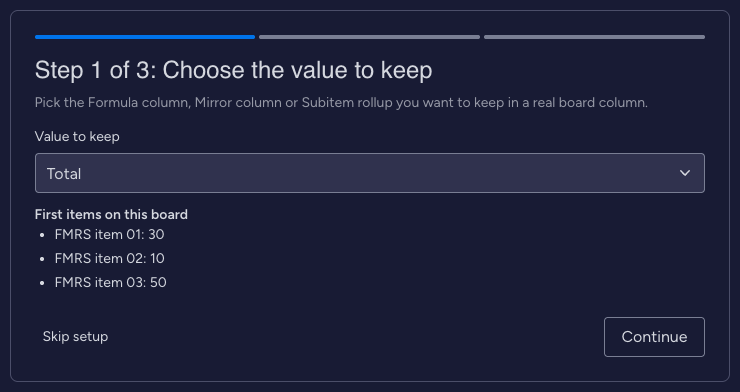
On your board, click the + next to the view tabs, choose Apps and add Formula & Mirror Rollup Sync. The view opens on Step 1 of 3: Choose the value to keep.
The list groups your Formula columns, Mirror columns and subitem rollups. The app preselects one and shows its value on the first items, so you can check it is the right one. For a subitem rollup, also choose how to combine the subitems (for example Sum or Average). Click Continue.
2. Choose the column
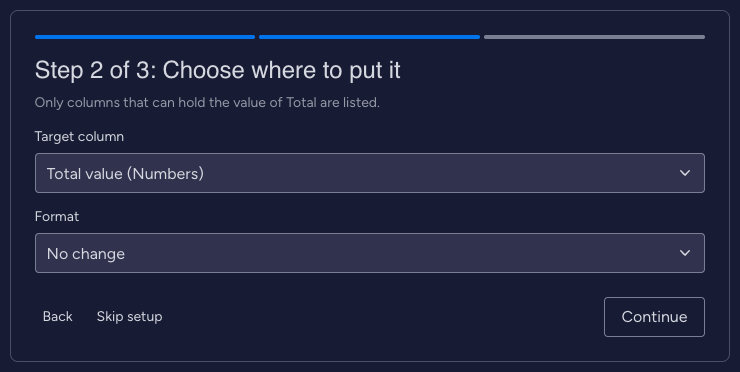
Step 2 of 3: Choose where to put it lists only the columns that can hold the value: Numbers, Text, Status, Date, People or Timeline, depending on the value. A column named like the source (for example "Total value") is preselected. You can also pick Create a new column. Under Format, keep "No change" or choose a format such as "Round to 2 decimals", "Show as currency" or "Show as percent". Only formats that fit the target column are offered. Click Continue.
Skip setup is available on every step. You can add rules later in the Rules & Backfill tab.
3. Check and fill existing items
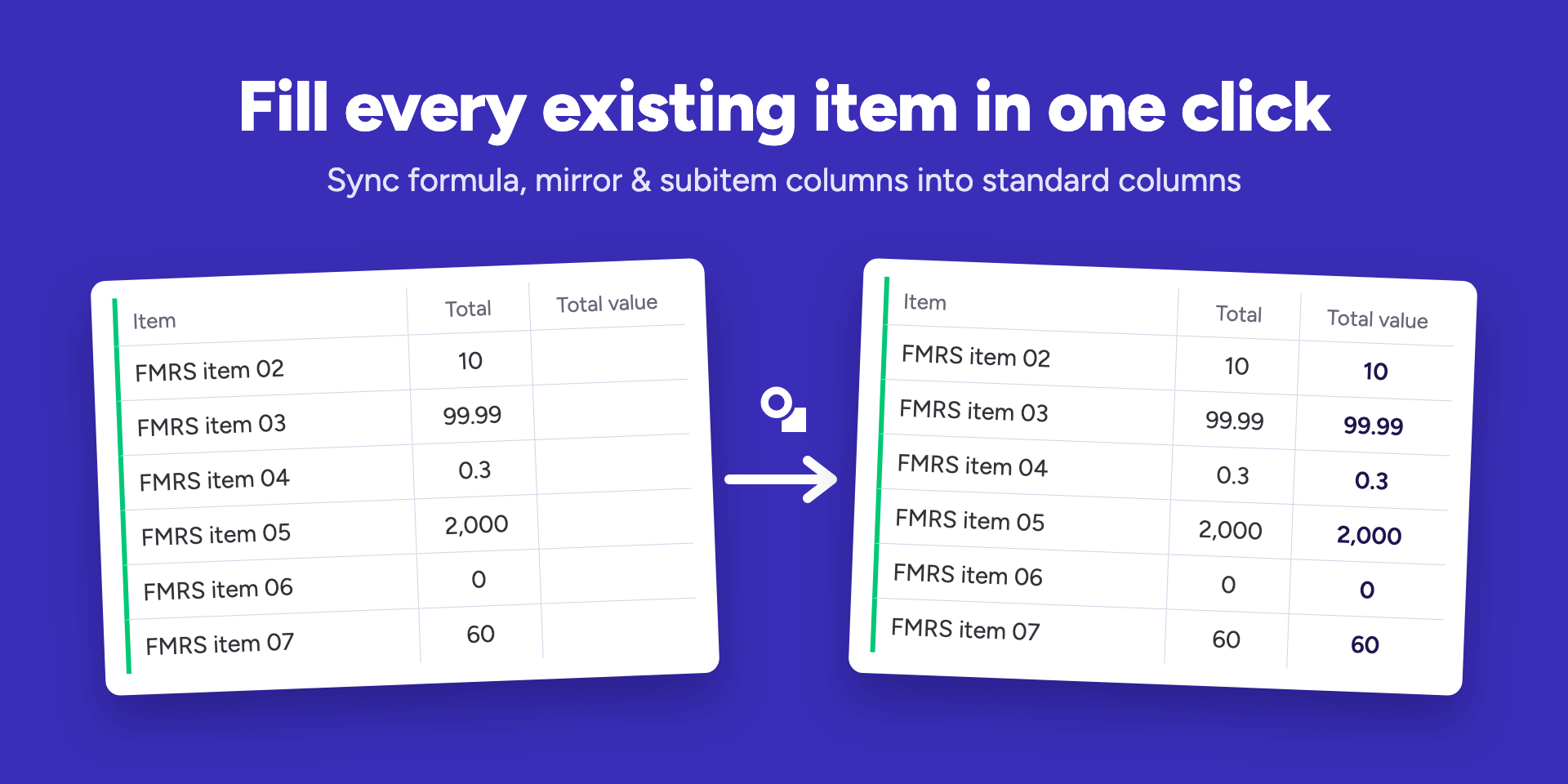
Step 3 of 3: Check and fill existing items checks every item on the board without using operations. It shows how many items will update, how many already match and how many cannot be calculated (with the reason), followed by the first changes and how many operations you have left this month.
Click Fill N existing items to write the values into the column. A progress bar shows how far the fill is; you can pause it and resume it later from the Rules & Backfill tab, also after closing the view. If the monthly allowance runs out during a fill, the fill pauses, the remaining items wait, and monday.com's plan picker opens once so you can change the plan. Save rule saves the rule without filling.
4. Keep it current with an automation
A fill copies today's values. To keep the column current, add one of the app's actions to a monday.com automation:
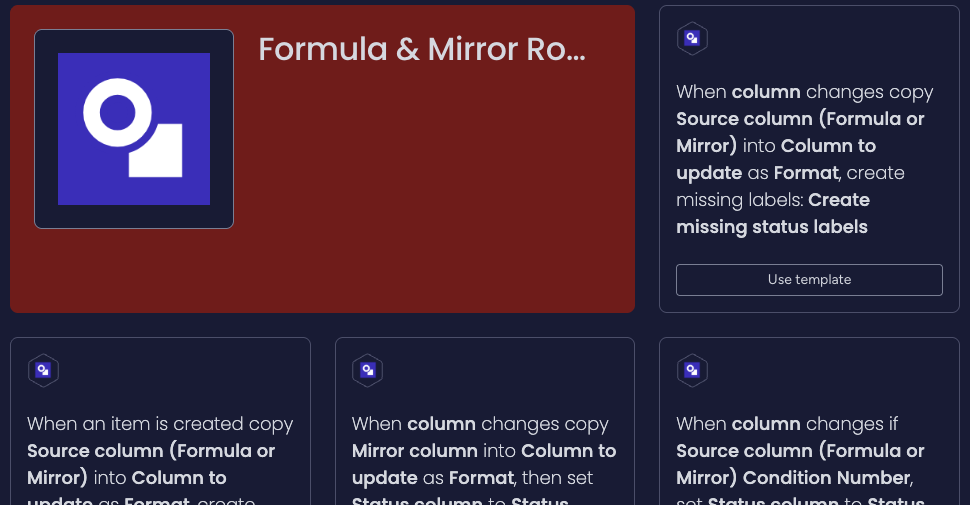
- Click Automate on the board, then Create. Search for "Formula" and open the app's page to start from one of its eight templates, or create an automation from scratch and pick the app's action, for example Copy a Formula or Mirror value into a column.
- Choose a trigger, for example "When column changes" on Price, then the source (Total), the column to update (Total value) and the format. Turn the automation on.
From then on, every run updates the column. If the value did not change, nothing is written and no operation is used. Other actions roll subitem values up to the parent, copy a parent value into every subitem, and set a status (and notify someone) when a Formula value crosses a number. In AI Workflows, the trigger When a mirrored value changes follows Mirror columns directly.
5. See every change
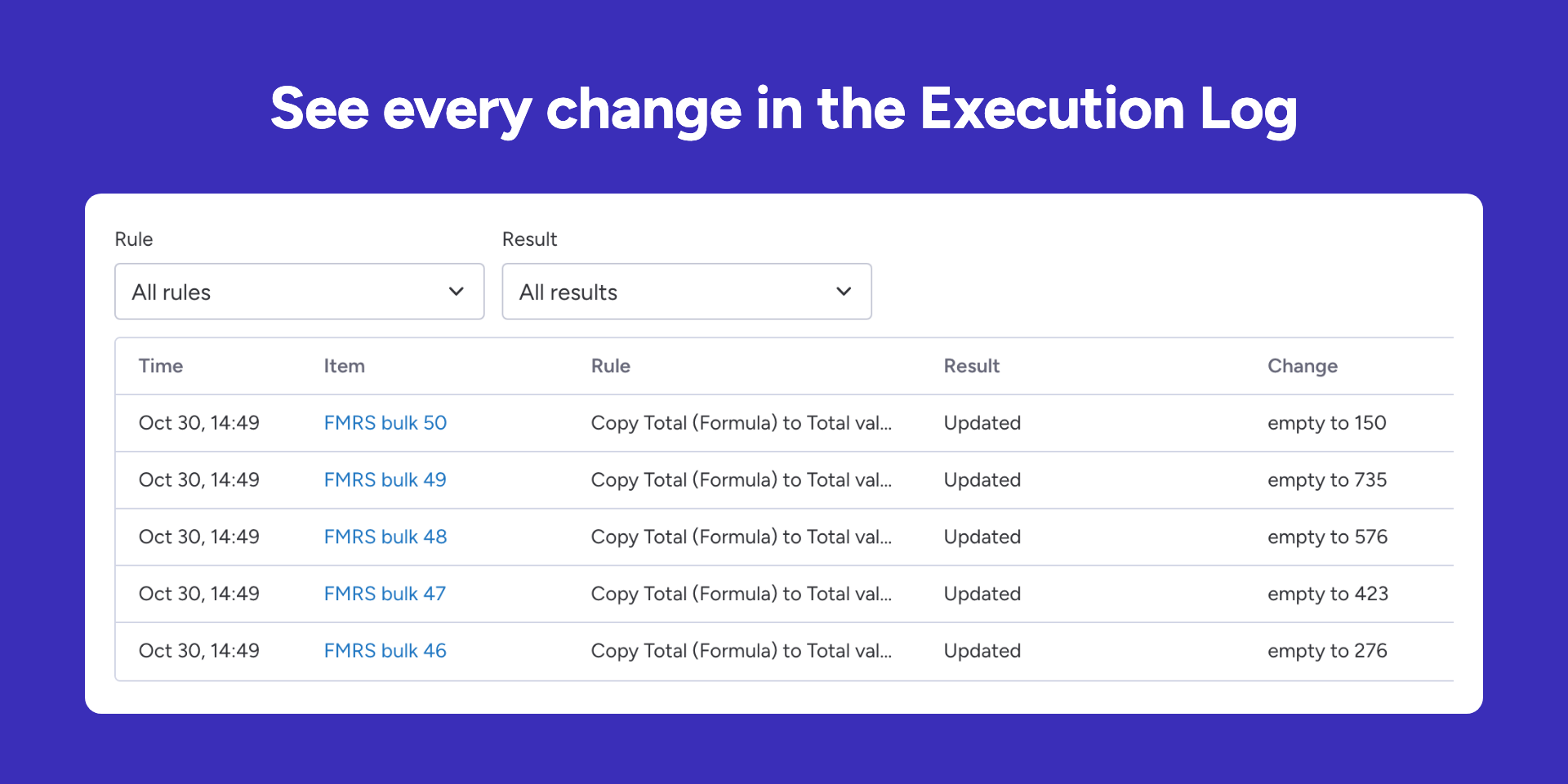
The Execution Log tab lists every run: the time, the item, the rule, the result (Updated, Unchanged, Skipped with the reason, or Paused), the change from the old to the new value, and the operations it used. It shows 5 entries per page with Previous Page and Next Page, can be filtered by rule and result, and follows the board's filter. Entries are kept for 30 days.
Formula Debugger and AI formula helper
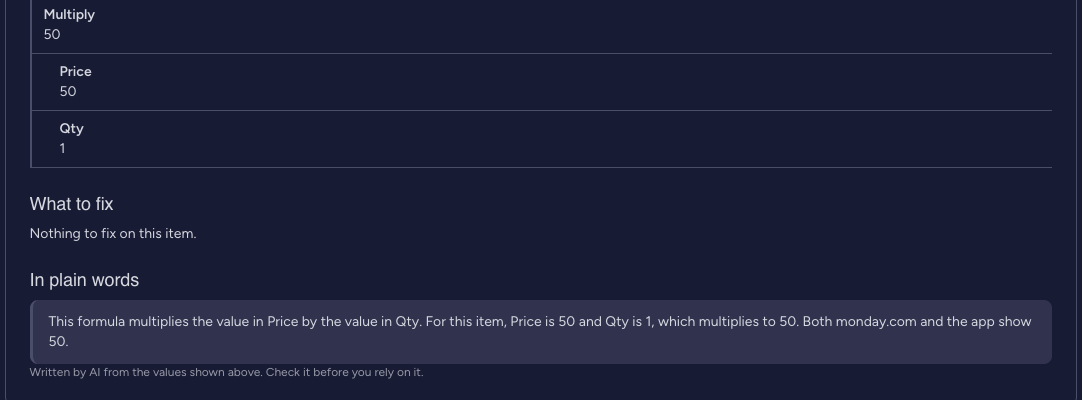
In the Formula Debugger tab, pick an item and a Formula column or rule, then click Explain this item. You see what monday.com shows next to what the app calculates (with a Match or Different badge), a formula breakdown with the value of every part, and what to fix. Formula columns that use Mirror columns are listed too: monday.com does not calculate them for apps, so the app calculates them itself and offers Set up this copy.
The optional AI formula helper has two buttons:
- Explain in plain words (below an explained item) writes 2 to 4 sentences on what the formula does and why this item shows its value.
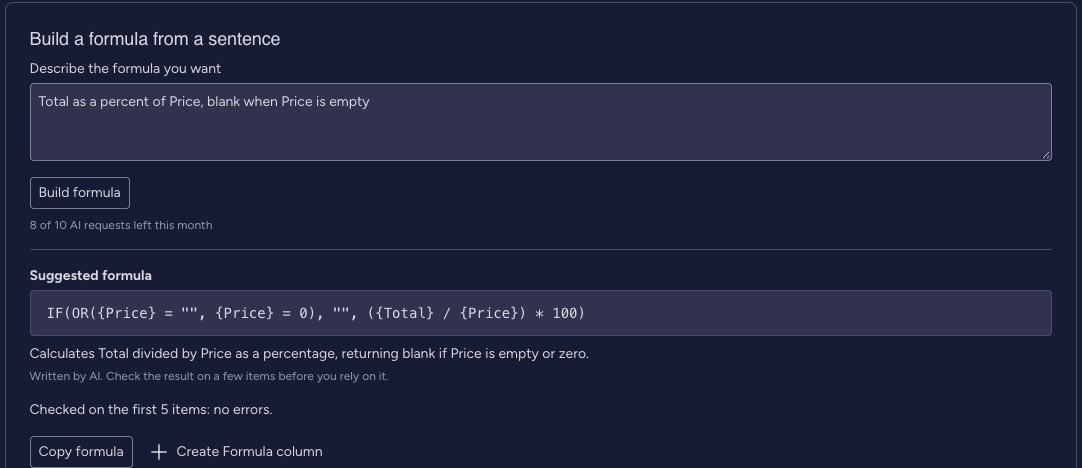
- Build formula (under "Build a formula from a sentence") turns a sentence such as "Total as a percent of Price, blank when Price is empty" into a monday.com formula, checks it on the first 5 items and explains it in one line. Click Copy formula, or Create Formula column (shown to board editors) to add it to the board.
AI answers can be wrong; check a formula on a few items before you rely on it. Each plan includes a monthly number of AI requests (10 on the Free plan), separate from operations; the line under the buttons shows how many are left this month. Nothing is sent to the AI service without a click, and account admins can turn AI help off in Settings. What is sent is described in the Privacy Policy.
Item View
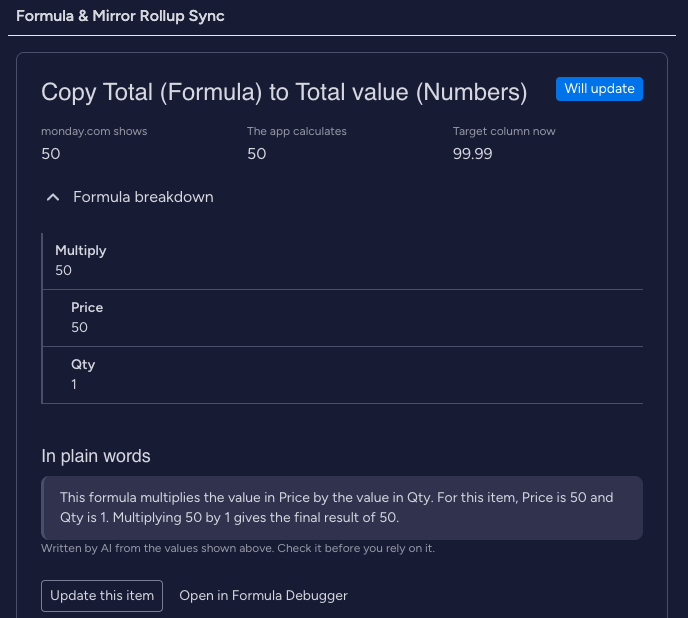
Open an item, click the + next to the item's tabs, choose Apps and add Formula & Mirror Rollup Sync. The tab shows one card per rule on the board: what monday.com shows, what the app calculates, the target column now, and a badge (Matches, Will update or Cannot calculate). Expand the formula breakdown or, for rollups, the subitem values.
Update this item writes the value for this item only and uses 1 operation if the value changes; if it already matches, it answers "Nothing to update" and uses none. Explain in plain words gives the AI explanation for this item, and Open in Formula Debugger opens the full view.
Settings
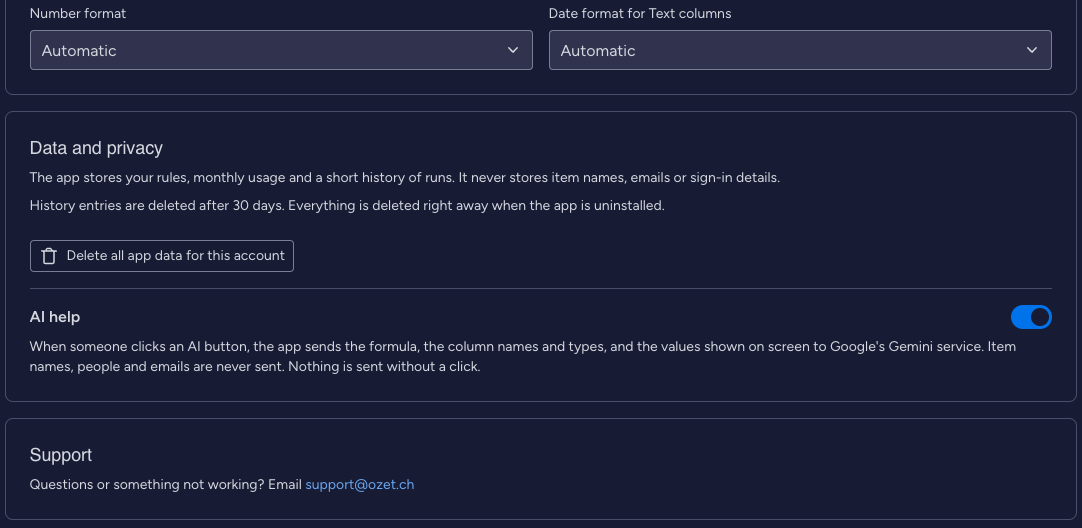
The Settings tab shows your plan with Change plan (monday.com's plan picker), the number format and the date format used for Text columns, Data and privacy (what the app stores; account admins can delete all of the account's app data), the AI help switch (account admins only) and the support address.
What counts as an operation
An operation is one item whose target column actually changed. Values that did not change, the free check before a fill, the Formula Debugger, AI requests and notifications use none. Allowances reset on the first day of each month. When the monthly allowance is used up, live updates and fills pause until the next month or until you change the plan; automation runs then write nothing and show "Monthly operations used up". The header of the Board View shows how many operations you have used this month.
Troubleshooting
When a value is not copied, the Execution Log, the Formula Debugger and the Item View say why. The most common reasons:
- The value is blank: a column the formula uses is empty on this item. Fill it in, or change the formula so it handles empty values (the AI helper can build one that returns blank).
- Text where a number is needed: a column holds text, such as "n/a", where the formula or a Numbers target column needs a number. Correct the value or use a Text column as the target.
- Division by zero: the formula divides by a column that is 0 on this item. Wrap the division in an IF that returns blank when the divisor is 0.
- Monthly operations used up: updates pause until the first day of next month or until you change the plan with See plans or Settings > Change plan. A paused fill continues with Resume filling.
- You cannot edit the column: viewers, and guests or members without edit rights on the board, cannot write values. Ask a board owner for edit rights, or let someone who has them run the fill or Update this item.
- The column no longer exists: a column used by the rule or the formula was deleted. Delete the rule in Rules & Backfill and add it again with the current columns.
- The rule is paused for 30 minutes: one item changed more than 10 times in 5 minutes, usually because two automations update each other. Check your automations; the rule resumes by itself.
- Several different values: a Mirror column shows different values from several connected items (for example different statuses), so there is no single value to copy. Several numbers are added together instead.
Support
Stuck or something looks wrong? Write to [email protected] with your board's name and the rule you set up.