Setup guide
TidyAddress for HubSpot. A few minutes from install to the first fixed record. Back to the app page. No sign-in needed.
On this page
- What TidyAddress does
- Who can set it up
- Step 1: Install
- Step 2: Accept the data notice
- Step 3: Place the card
- Step 4: Scan, preview and fix existing records
- Step 5: Use it every day
- Step 6: Settings
- Step 7: Disconnect and uninstall
- What happens to your data
- Support
What TidyAddress does
TidyAddress checks the postal addresses and phone numbers on your HubSpot contacts and companies, shows the fix next to the current value, and writes it only after a person or admin confirms. Addresses are checked with Google's Address Validation service; phone numbers are checked on our server.
Who can set it up
A HubSpot user who can install apps (a super admin or a user with App Marketplace access) installs TidyAddress, accepts the data notice and changes settings. The record card and the app home work on every HubSpot subscription. The workflow actions need a subscription that includes workflows (Professional or Enterprise).
Step 1: Install
- Click Install on the TidyAddress listing, or open https://address-hygiene.fly.dev/oauth/install.
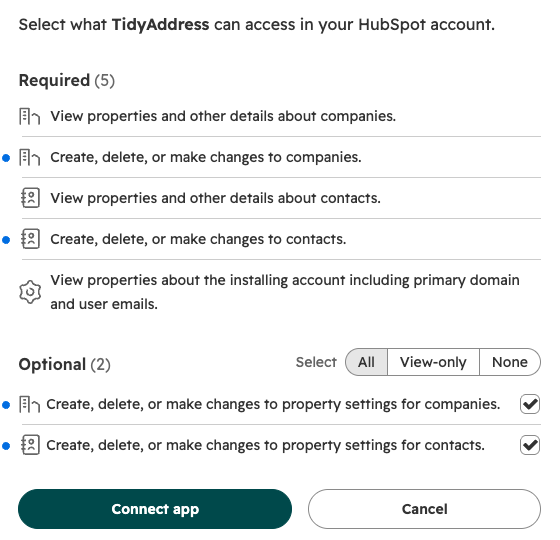
- Choose your HubSpot account and review the permissions: read and write contacts and companies, plus optional permissions to create the status properties.
- While TidyAddress is not yet listed in the HubSpot Marketplace (HubSpot lists apps only once they have a few customers), HubSpot shows a warning that the app has not been reviewed and asks you to type "I accept the risk" to continue. The privacy policy and the data processing agreement say what the app reads and stores.
- Approve. HubSpot opens the TidyAddress app home. You never copy a key or token.
Step 2: Accept the data notice
The app home first shows Before TidyAddress starts: what is read, the service providers including Google, where data is stored and how long it is kept. Tick the box and click Agree and continue. TidyAddress reads nothing before this. During the beta the app is then free, with 750 address checks a month.
Step 3: Place the card
HubSpot does not add app cards to records automatically. In the Show the card step, click Open App cards settings, click Manage locations on the Address and phone check card, tick it under Right sidebar for Record Page, Default view on the Contacts tab and on the Companies tab, and click Save. The step completes once the card has loaded on any record.
Step 4: Scan, preview and fix existing records
- Scan records: a free count of addresses that can be checked, incomplete ones, missing countries and test data, plus phone numbers that can be fixed. It runs on our server and stores nothing.
- Preview fixes: click Preview 5 fixes to see before and after on real records. It uses no address checks and changes nothing.
- Fix records: review how many checks the run can use, tick the confirmation and click Start backfill. Only corrections Google is confident about are written; everything else is left for you to review. You can pause and resume the run.
Skip setup takes you straight to the dashboard if you want to start with the card.
Step 5: Use it every day
- On a record: open a contact or company, find Address and phone check in the right sidebar, click Check address, review From HubSpot next to From Google Maps, and click Apply fixes. A saved result from the last 30 days is shown for free; Check again runs a fresh lookup that uses one check.
- In workflows: add Check and fix address or Check and fix phone number, map the properties, choose a Write mode and branch on the status. To let the address action write, an admin turns on Write confident corrections from workflow actions in TidyAddress settings; until then it reports Waiting for confirmation and changes nothing. A three-minute guide shows the phone and address workflow step by step.
- New and changed records: on the dashboard, tick I accept confident corrections for new and changed records and click Check new and changed records.
- Undo: Check history on the app home lists every run of the last 30 days with an Undo for each. Undo puts back the values that run changed and leaves alone anything someone edited since.
Step 6: Settings
- Defaults: Default country (used when a record has no country), Country format, State format and Phone number format (international with spaces, the default, or E.164 without spaces).
- Workflow corrections: Write confident corrections from workflow actions, off until an admin turns it on. Each write is logged.
- Record card: Let all users apply fixes from the card. While it is off, only admins can apply fixes.
- Status properties: Create status properties adds the optional TidyAddress property group.
- Plan: plan and usage, Choose a plan and Buy check pack.
Step 7: Disconnect and uninstall
In TidyAddress settings, under Disconnect, click Disconnect and then Disconnect now. This removes TidyAddress from your HubSpot account (it disappears from Connected Apps), cancels the plan and deletes the access tokens at once. You can also uninstall from Connected Apps in HubSpot; TidyAddress notices and runs the same clean-up.
What happens to your data
- At once: access tokens are revoked and deleted.
- Within 24 hours: everything TidyAddress stored for your account is deleted from the live database. A purge log with the account ID, dates and row counts is kept.
- Within 10 days: backups are gone too, so nothing remains after 10 days.
- In HubSpot: values already written to your records stay, and so do the status properties if you created them, until you delete them in HubSpot.
- Privacy deletions: when a contact is deleted in HubSpot for privacy reasons, TidyAddress deletes what it stored about that contact within 24 hours.
Support
Write to [email protected] in English. We answer within 2 business days, and within 24 hours for critical issues.
TidyAddress is independent of HubSpot, Inc., and is not authorized by, endorsed by, sponsored by, affiliated with, or otherwise approved by HubSpot, Inc. HubSpot is a registered trademark of HubSpot, Inc.