Datebook Event Calendar for Confluence: User guide
Back to the app page. Questions: [email protected].
Datebook puts an event calendar on any Confluence page and shared calendars in any space. People who can edit add events on the published page; everyone who can view the page sees the calendar. The labels below are the ones you see in Confluence.
- Add a calendar to a page
- Add and edit events
- Views, search and time zones
- Repeating events
- Attendance
- Add to my calendar and reminders
- Import and export .ics and .csv
- Space calendars
- Show shared calendars together
- Filters and Show weekends
- Categories and templates
- Site settings for admins
- Who can edit and who can view
- When a calendar is paused
- Data and privacy
- Get help
Add a calendar to a page
- Edit a Confluence page, type /Datebook and insert Datebook Calendar. Then Publish the page.
- While the page is in the editor, the calendar is a read-only preview with the message "Publish the page to add and change events." You add and change events on the published page.
- To change how this calendar looks, edit the page, select the calendar and open its settings (Calendar options): Calendar (this page's calendar, or a shared calendar of this space), Default view, Week starts on, Display time zone (each viewer's own time zone, or one pinned time zone for an offsite or a team in one place), Day starts at and Day ends at, Also show calendars, Colour events by and Reminder in downloaded events. Save, then update the page.
- A copy of a page gets its own empty calendar. The original calendar and its events stay on the original page.
Add and edit events
- Month view: click a day, or the empty part of a day, to open Add event on that date. You can also press Add event in the toolbar.
- Week or Day view: click a start time, then the end time. The line under the toolbar says "Click the end time, or cancel." while you pick.
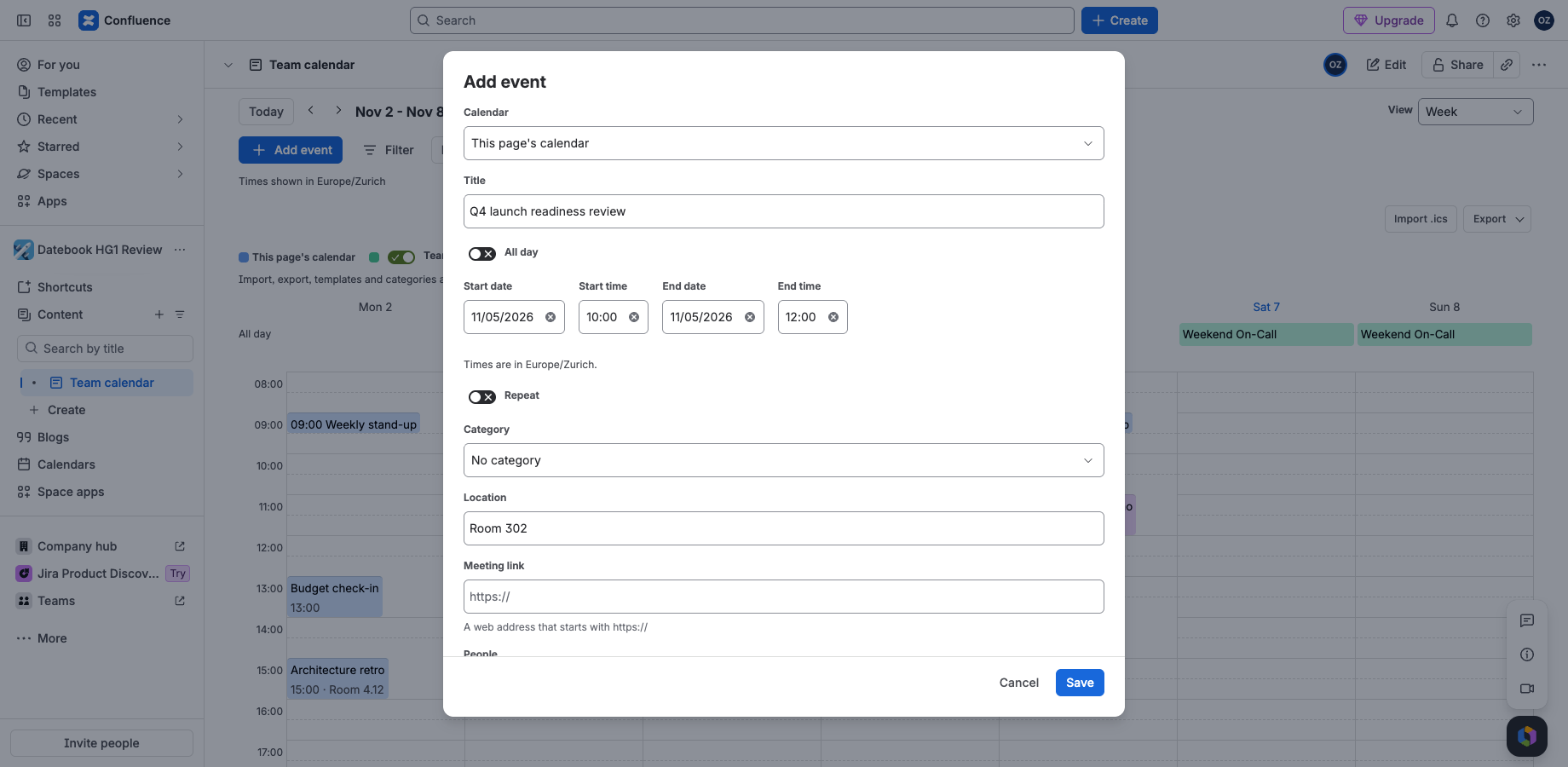
- The event form has Title, All day, Start date, Start time, End date, End time, Repeat, Category, Location, Meeting link (a web address that starts with https://), People (up to 20) and Description. When the page shows several calendars, Calendar comes first and lists only the calendars you can edit.
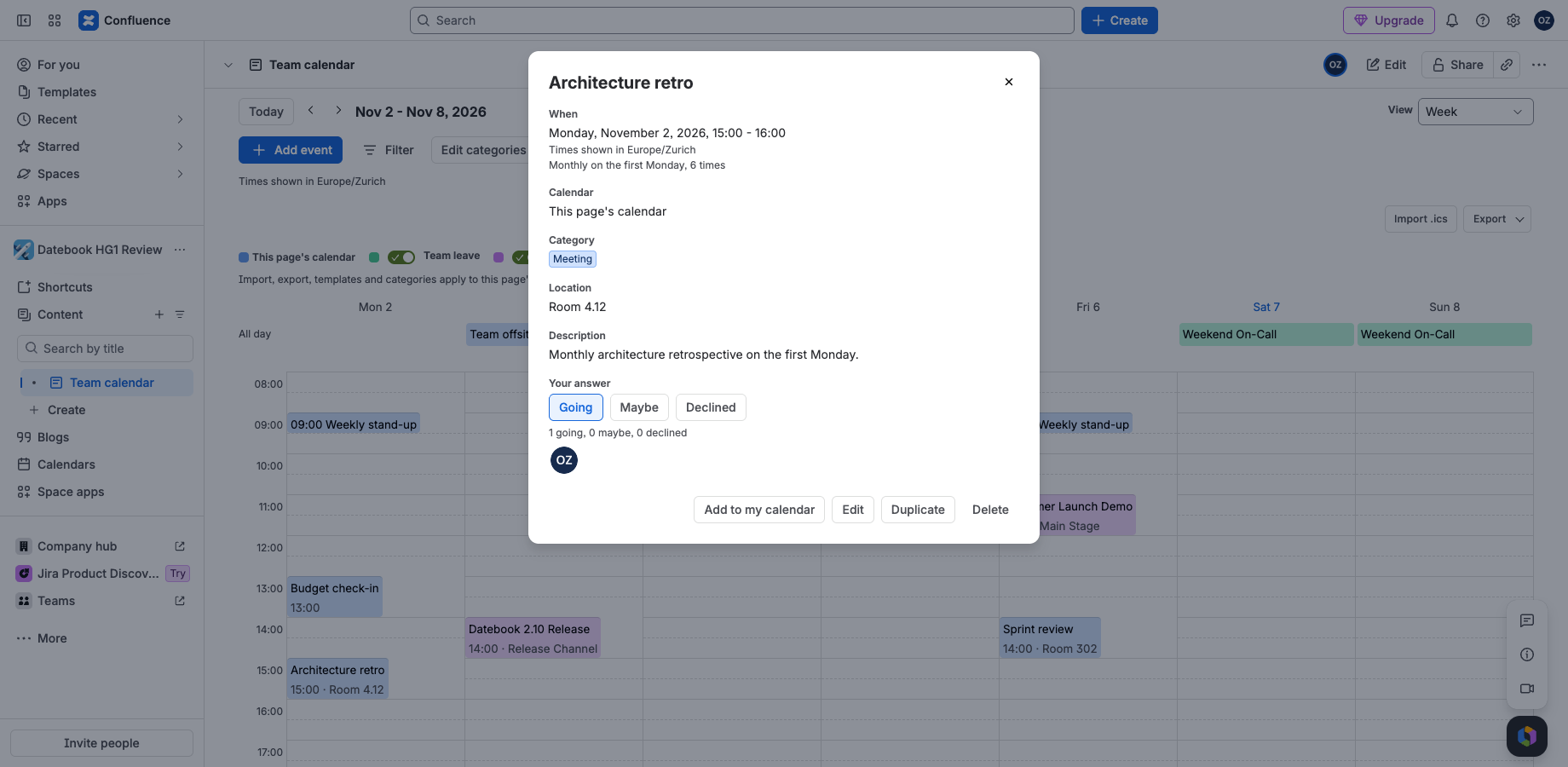
- Click an event to see its details. From there use Add to my calendar, Edit, Duplicate or Delete.
- A calendar holds up to 5,000 events.
Views, search and time zones
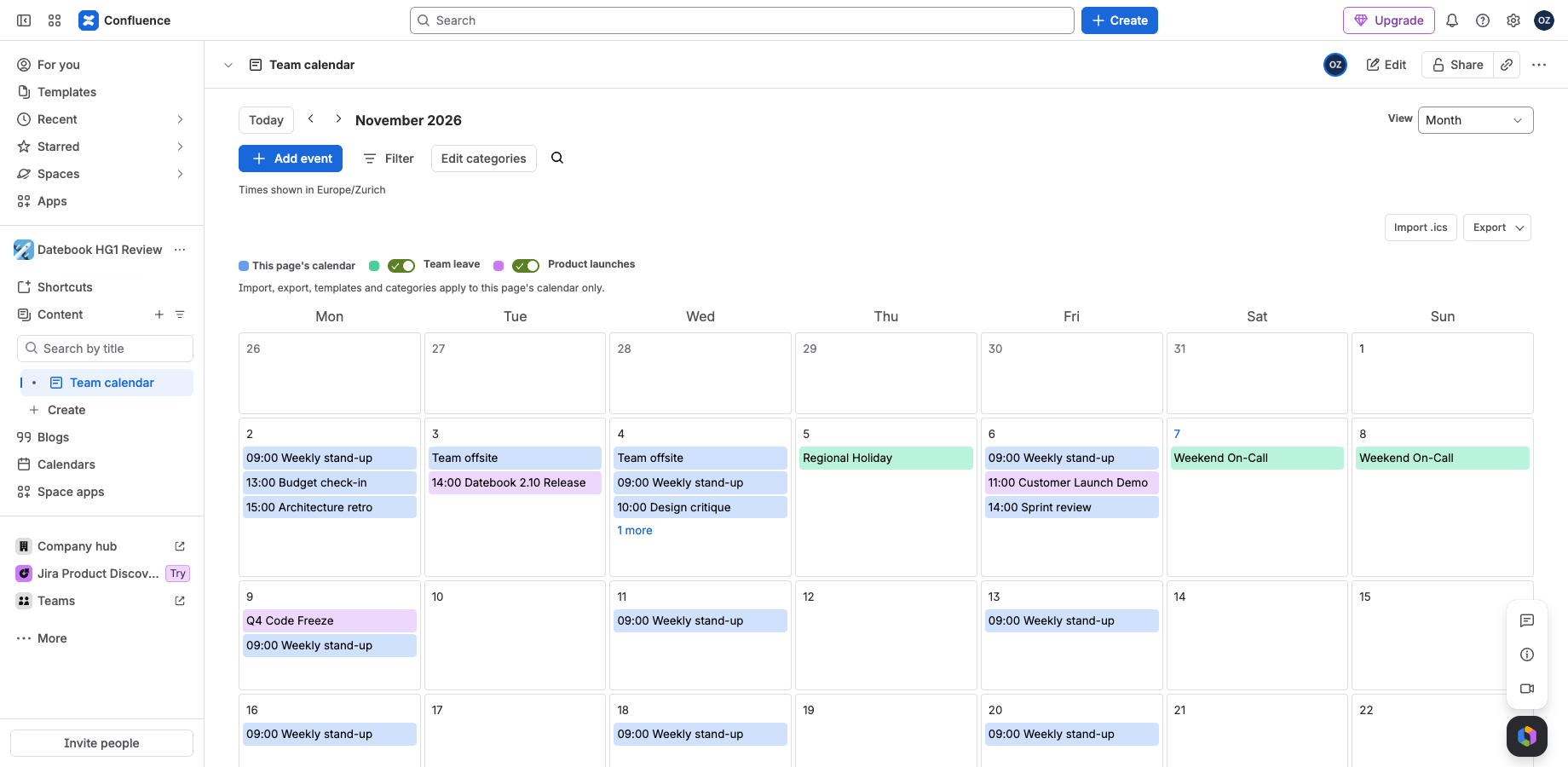
- Choose Month, Week, Day, Agenda or Quarter in the View select. Use the arrows to move to the previous or next period and Today to come back.
- Day and Week view open at the calendar's day hours. Press Earlier hours or Later hours to see the rest of the day.
- Quarter view shows three months with the days that have events marked. Click a marked day to open it in Day view.
- Search events finds events by title, location or description, from one year back to two years ahead, in Upcoming and Past. Type at least 2 characters.
- The line under the toolbar says which time zone the times are shown in ("Times shown in ...").
- Datebook remembers the view you last used on each calendar, for you only.
Repeating events
- Turn on Repeat in the event form and choose Daily, Weekly, Monthly or Yearly, and how often (Every).
- Weekly events repeat On these days, for example Monday and Thursday.
- Monthly events repeat on a date (Day 15 of the month) or on a weekday position (The second Tuesday, The last Friday), chosen under Repeat on.
- Ends: Never, After a number of times or On a date.
- When you edit or delete one date of a series, choose Only this date or All dates in the series.
Attendance
- In the event details, under Your answer, choose Going, Maybe or Declined. Select the same answer again to clear it.
- The details show how many people are going, maybe and declined. Everyone who can view the calendar can answer for themselves.
Add to my calendar and reminders
- Add to my calendar in the event details downloads an .ics file you can open in Google Calendar, Outlook or Apple Calendar. For a repeating event the file holds the whole series.
- Page authors can set Reminder in downloaded events in Calendar options: None, a number of minutes before, 1 hour before or 1 day before. People who add the event to their own calendar get this reminder there. All-day events remind at 9:00 the day before.
Import and export .ics and .csv
- Import .ics: choose an .ics file of up to 2 MB exported from a calendar. A preview shows how many events were found, how many repeat and how many will be skipped. Press Import N events to add them. Up to 2,000 events are imported from one file.
- Importing the same file again updates the events imported before from it instead of adding them twice. Attendees and organizers are not imported. Categories with the same name as a category of the calendar are matched.
- Export, then Export .ics or Export .csv, saves the calendar's events to a file.
- When a page shows several calendars, import, export, templates and categories apply to that page's own calendar only.
Space calendars
- Open a space and choose Space apps > Datebook in the sidebar. The page lists the Space calendars (shared calendars such as leave, launches or on-call) and the Calendars on pages in this space.
- To create a shared calendar, enter a Calendar name, choose a Template or Default categories, and press Create calendar. Press Open to use it, and Back to return to the list.
- Space admins can Rename and Delete shared calendars. Deleting a calendar deletes all its events and answers and cannot be undone, so export it first if you want to keep a copy.
- To show a shared calendar on a page, choose it under Calendar in Calendar options, or add it under Also show calendars.
Show shared calendars together
- In Calendar options, under Also show calendars, press Add a calendar and choose up to 2 shared calendars from any space you can view. Each calendar gets its own Colour.
- Colour events by Calendar or Category.
- A row of switches above the calendar lets each person turn the added calendars on or off for themselves.
- A calendar a person cannot view is never shown to them. They see a short line instead, such as "1 calendar on this page is not shown to you."
Filters and Show weekends
- Open Filter to choose which categories to show (Show categories), to show Only my events, and to turn Show weekends on or off. The button shows how many filters are on, for example "Filter (2)".
- Clear filters removes them. Your filters and your Show weekends choice are kept for you only; other people see their own.
Categories and templates
- Edit categories sets the name and colour of each category of the calendar, up to 12 categories.
- Start from a template sets the categories for a common use: Team offsite agenda, Release and sprint calendar or Team leave and on-call. A template adds no events.
Site settings for admins
- Confluence admins open Settings > Apps > Datebook Event Calendar.
- The first visit is a short setup: Step 1 of 3 Calendar basics (Week starts on, Time format, Default view, Day starts at, Day ends at), Step 2 of 3 Categories (the categories new calendars start with) and Step 3 of 3 Where calendars live. Press Finish setup, or Skip setup to keep the defaults.
- Later visits show the same settings with Save. Each page calendar can override these defaults in its own settings.
- Only Confluence admins can change these settings.
Who can edit and who can view
- Page calendars: people who can edit the page can add, change and delete its events. People who can only view the page see the calendar read-only with "You can view this calendar but not change it."
- Space calendars: people who can add pages to the space can create shared calendars and change their events. Space admins can also rename and delete them.
- Everyone who can view can switch views, filter, search, answer Going, Maybe or Declined for themselves, use Add to my calendar and export .ics or .csv.
- Datebook checks Confluence page and space permissions before it shows or changes events, so a calendar follows the restrictions you already have.
When a calendar is paused
If the app subscription for the site is not active, every Datebook calendar shows "This calendar is paused" and no events. A Confluence admin can renew the subscription in Manage apps. Your events are kept, and the calendars come back as they were once the subscription is active again. During the free trial every feature works.
Data and privacy
Calendars, events, answers and settings are stored in Atlassian-hosted storage for your Confluence site, in your site's data residency location. Nothing is sent outside Atlassian. The only information Datebook stores about people is their Atlassian account ID. Atlassian deletes the app's data 28 days after the app is uninstalled. Details are in the Datebook section of our privacy policy.
Get help
Write to [email protected]. See the support page for response times, and the terms.
Datebook is built by OZET and is not affiliated with or endorsed by Atlassian.